Secure Links
Prerequisites
- Merchant generates an RSA key pair (2048 bit), one pair for each environment
- Merchant sends only the merchant public key to DMG
- DMG sends the DMG public key and the merchant's HPP address to the merchant
This page is for developers who build secure links in their own system.
A secure link opens the Hosted Payment Page (HPP) with the form fields filled in. The merchant signs each link with the merchant private key, and can turn the link into a QR code image.
Generating Secure Links
DMG recommends the Secure Links API over creating links on your own system. You send the signed payload and the API returns the link or a QR code image. It checks your signature, your key and the payload first. Use the script and the steps on this page if you build links in your own system.
The merchant signs each link with the merchant private key, and the DMG public key encrypts the data inside it, so only DMG can read it.
The diagram below shows the steps in order.

HPP CLI Source Code
Below is a helper script, written in Node.js, that creates keys and builds a secure link from a JSON payload. Save it as a file named hpp-cli, with no file extension. The commands on this page use that name. See Run the Script to learn how to run it.
Update Notice: The version of the script below is version 6. Create new keys and links with this version.
#! /usr/bin/env node

const crypto = require('crypto');

function generateKeys() {
  return crypto.generateKeyPairSync('rsa', {
    modulusLength: 2048,
    publicKeyEncoding: { type: 'spki', format: 'pem' },
    privateKeyEncoding: { type: 'pkcs8', format: 'pem' }
  });
}

function createLink(dmgPublicKey, merchantPrivateKey, payload, baseUrl) {
  // The payload must be JSON with a "data" object
  const parsed = JSON.parse(payload);
  if (typeof parsed.data !== 'object' || parsed.data === null) {
    throw new Error('The payload must be JSON with a "data" object');
  }
  const plainText = JSON.stringify(parsed);

  // The merchant signs the plain JSON text (RSA-SHA256, base64)
  const sign = crypto.createSign('RSA-SHA256');
  sign.update(plainText);
  sign.end();
  const signature = sign.sign(merchantPrivateKey, 'base64');

  // Random AES key and IV, new for each link
  const symmetricKey = crypto.randomBytes(32);
  const iv = crypto.randomBytes(16);

  // Encrypt the JSON text with AES-256-CBC
  const cipher = crypto.createCipheriv('aes-256-cbc', symmetricKey, iv);
  const cipherText = cipher.update(plainText, 'utf-8', 'base64') + cipher.final('base64');

  // Encrypt the AES key with the DMG public key (RSA-OAEP)
  const encryptedSymmetricKey = crypto.publicEncrypt({
    key: dmgPublicKey,
    padding: crypto.constants.RSA_PKCS1_OAEP_PADDING
  }, symmetricKey);

  // Join IV, encrypted AES key, encrypted data and signature, then base64url encode
  const concatenatedData = [
    iv.toString('base64'),
    encryptedSymmetricKey.toString('base64'),
    cipherText,
    signature
  ].join('.');

  return baseUrl + Buffer.from(concatenatedData).toString('base64url');
}

if (process.argv.length === 2) {
  console.log('./hpp-cli <command>');
  console.log('');
  console.log('Commands:');
  console.log('gen-keys - Generates the keys required to create links');
  console.log('create-link <payload> - Creates the link for the hosted payment page');

  process.exit(1);
}

if (process.argv[2] === 'gen-keys') {
  const keyPairs = generateKeys();

  console.log('Hosted Page - Secure Link Key Generator');
  console.log('Below are the keys to use to create secure links');

  console.log('');
  console.log('Merchant public key:');
  console.log(Buffer.from(keyPairs.publicKey).toString('base64url'));
  console.log('');
  console.log('Merchant private key:');
  console.log(Buffer.from(keyPairs.privateKey).toString('base64url'));
  console.log('');
  console.log('Note: Keep the merchant private key secret. Do not share it with anyone, including DMG.');
}

if (process.argv[2] === 'create-link') {
  if (process.argv.length !== 4) {
    console.error('./hpp-cli create-link <payload>');
    console.error('');
    console.error('<payload> - JSON formatted string with expiresAt, merchantId and a data object');
    process.exit(1);
  }

  const dmgPublicKey = Buffer.from(process.env.DMG_PUBLIC_KEY, 'base64url').toString('ascii');
  const merchantPrivateKey = Buffer.from(process.env.MERCHANT_PRIVATE_KEY, 'base64url').toString('ascii');
  const baseUrl = process.env.PARAMS_BASE_URL;
  if (!baseUrl) {
    console.error('Set PARAMS_BASE_URL to your HPP address, for example https://YOUR_HPP_ADDRESS/');
    process.exit(1);
  }

  console.log(createLink(dmgPublicKey, merchantPrivateKey, process.argv[3], baseUrl));
}
You can run the script as a separate service, add it to your application, or translate it into another language with that language's cryptography library.
Key Generation
Each merchant creates their own merchant key pair. DMG never creates or holds the merchant private key.
- Use an RSA key of 2048 bits. Do not use a shorter key.
- Use one key pair for each environment. Do not use the same pair for production and test.
- Keep the merchant private key secret. Store it in a secrets manager or in environment variables on your server.
- Send only the merchant public key to DMG.
- Confirm the merchant public key fingerprint with DMG after you send it. Use a different channel from the one you used to send the key.
You can generate the keys with the script above (./hpp-cli gen-keys) or with openssl:
openssl genpkey -algorithm RSA -out private_key.pem -pkeyopt rsa_keygen_bits:2048
openssl rsa -pubout -in private_key.pem -out public_key.pem
To get the fingerprint of the merchant public key, run:
openssl pkey -pubin -in public_key.pem -outform DER | openssl dgst -sha256
The script reads each key as the base64url encoding of the PEM file. To encode a PEM file in this format, run:
base64 < private_key.pem | tr -d '\n' | tr '+/' '-_' | tr -d '='
DMG sends you the DMG public key. Use it as DMG_PUBLIC_KEY in the commands below. Use your merchant private key as MERCHANT_PRIVATE_KEY.
Payload
The payload is JSON with a data object. The keys in data are the field names of your Hosted Payment Page form. A key that does not match a field name does not appear on the form. The HPP reads only data; other top-level keys are ignored.
{
  "expiresAt": "2040-01-01T00:00:00.000Z",
  "merchantId": "YOUR_MERCHANT_ID",
  "data": {
    "code": "123456789",
    "invoice": "INV1234",
    "customerName": "Jane Smith",
    "jobNumber": "JOB1234",
    "amount": "100000"
  }
}
See Invoice/Quote Form Parameters for the fields.
Use a JSON payload. With JSON:
- You can check your link with the Secure Links API before you go live and after every key change.
- Field values can contain
&and=.
Do not use % in field values. The HPP reads % as the start of an encoded character.
Links built with the earlier query-string format, such as code=123&amount=100, continue to open.
Run the Script
You can run the script with Docker or with Node.js:
or

- Docker runs the script in an isolated container, with no other software to install. You need Docker.
- Node.js runs the script directly on your server. You need Node.js.
Using Docker
The commands below run the script in the node:26-slim Docker image.
-
Install Docker, if it is not installed.
-
Save the script as
hpp-cli. Open the terminal and go to the folder that hashpp-cli. -
Generate the merchant keys:
docker run --rm -v "$PWD":/usr/src/app -w /usr/src/app node:26-slim node hpp-cli gen-keys
You can also generate them with openssl. See Key Generation.
-
Send the merchant public key to DMG. Confirm the fingerprint with DMG.
-
Copy and paste the following command. Change the values as required.
docker run --rm -v "$PWD":/usr/src/app -w /usr/src/app -e PARAMS_BASE_URL='https://YOUR_HPP_ADDRESS/' -e DMG_PUBLIC_KEY=YOUR_DMG_PUBLIC_KEY -e MERCHANT_PRIVATE_KEY=YOUR_MERCHANT_PRIVATE_KEY node:26-slim node hpp-cli create-link '{
  "expiresAt": "2040-01-01T00:00:00.000Z",
  "merchantId": "YOUR_MERCHANT_ID",
  "data": {
    "code": "123456789",
    "invoice": "INV1234",
    "customerName": "John Doe",
    "amount": "2600"
  }
}'
Keep YOUR_MERCHANT_PRIVATE_KEY private.
- The command prints a link. The link ends in a long base64url string, for example:
https://YOUR_HPP_ADDRESS/<long-base64url-string>
-
To test the link, open it in a browser. It should show the HPP form with the fields filled in.
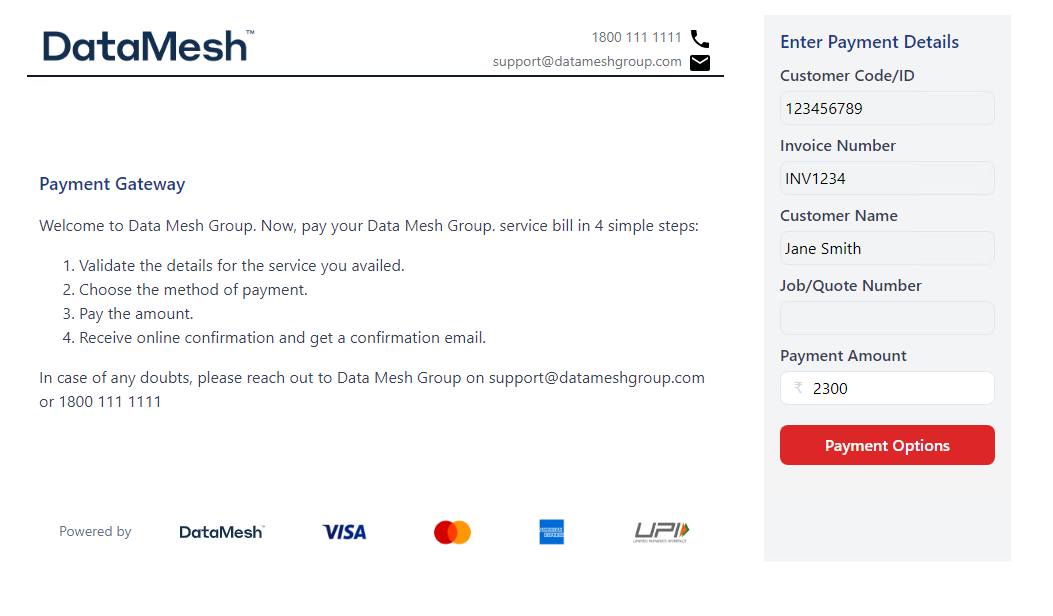
Example: an HPP form filled in from a secure link.
-
Before you go live, and again after every key change, check the link with the Secure Links API. See Validate a Link Before You Go Live.
-
Generate a QR code.
With Docker, you can send the output to a second Docker image that makes the QR code image. See QR Code Generation.
For example, this command creates a link and a QR code for John Doe, for an amount of 2600:
docker run --rm -v "$PWD":/usr/src/app -w /usr/src/app -e PARAMS_BASE_URL='https://YOUR_HPP_ADDRESS/' -e DMG_PUBLIC_KEY=YOUR_DMG_PUBLIC_KEY -e MERCHANT_PRIVATE_KEY=YOUR_MERCHANT_PRIVATE_KEY node:26-slim node hpp-cli create-link '{
  "expiresAt": "2040-01-01T00:00:00.000Z",
  "merchantId": "YOUR_MERCHANT_ID",
  "data": {
    "code": "123456789",
    "invoice": "INV1234",
    "customerName": "John Doe",
    "amount": "2600"
  }
}' | docker run --rm -i --net=none leplusorg/qrcode qrencode -l L -o - > qr.png
-
This writes the QR code image to
qr.png. Scanning it opens the link that this command created. -
Put the QR code image on the invoice or quote.
-
Scan the QR code from the invoice.
When the link is correct, the HPP opens with the form fields filled in.
Using Node.js
Tested with Node.js 24 and 26.
-
Install Node.js, if it is not installed.
-
Save the script as
hpp-cliin a folder on your server. -
Open the terminal and go to the folder that has
hpp-cli. -
Make the script runnable:
chmod +x hpp-cli. -
Create the merchant keys:
./hpp-cli gen-keys
-
Send only the merchant public key to DMG and confirm the fingerprint with DMG. The merchant private key stays on your server and is used below.
-
Change the values in the command below for the payer, then run it in the terminal.
PARAMS_BASE_URL='https://YOUR_HPP_ADDRESS/' \
DMG_PUBLIC_KEY=YOUR_DMG_PUBLIC_KEY \
MERCHANT_PRIVATE_KEY=YOUR_MERCHANT_PRIVATE_KEY \
./hpp-cli create-link '{"expiresAt": "2040-01-01T00:00:00.000Z", "merchantId": "YOUR_MERCHANT_ID", "data": {"code": "123456789", "invoice": "INV1234", "customerName": "Jane Smith", "amount": "100000"}}'
-
The command prints a link, for example:
https://YOUR_HPP_ADDRESS/<long-base64url-string> -
Before you go live, and again after every key change, check the link with the Secure Links API. See Validate a Link Before You Go Live.
-
To create the link and the QR code image in one command, send the output to the leplusorg/qrcode Docker image:
PARAMS_BASE_URL='https://YOUR_HPP_ADDRESS/' \
DMG_PUBLIC_KEY=YOUR_DMG_PUBLIC_KEY \
MERCHANT_PRIVATE_KEY=YOUR_MERCHANT_PRIVATE_KEY \
./hpp-cli create-link '{"expiresAt": "2040-01-01T00:00:00.000Z", "merchantId": "YOUR_MERCHANT_ID", "data": {"code": "123456789", "invoice": "INV1234", "customerName": "Jane Smith", "amount": "100000"}}' | docker run --rm -i --net=none leplusorg/qrcode qrencode -l L -o - > qr.png
-
Put the QR code image on the invoice or quote.
-
Scan the QR code from the invoice.
When the link is correct, the HPP opens with the form fields filled in.
Secure Links in Depth
If you build the link in your own code, in Node.js or another language, follow the steps below. Use the cryptography library that comes with your language. Do not write your own.
A secure link uses RSA-SHA256 to sign the plain JSON text. It uses AES-256-CBC to encrypt the JSON text. It uses RSA-OAEP to encrypt the AES key. These steps make sure that only DMG can read the data.
Steps to create a link:
-
Create the merchant key pair (RSA 2048 bit), if not already done. Get the DMG public key from DMG.
-
Create the payload as JSON text. See Payload. Use this exact text in steps 3 and 5.
-
Sign the JSON text with the merchant private key. Use RSA PKCS#1 v1.5 padding with SHA-256 (not PSS), over the plain JSON text, not over the encrypted data. Encode the signature in base64.
const sign = crypto.createSign('RSA-SHA256');
sign.update(plainText);
sign.end();
const signature = sign.sign(merchantPrivateKey, 'base64');
-
Create a random AES key (32 bytes) and a random IV (16 bytes). Create a new IV for each link. The HPP backend only accepts an IV of 16 bytes.
-
Encrypt the JSON text with AES-256-CBC, using the AES key and the IV. Encode the result in base64.
const cipher = crypto.createCipheriv('aes-256-cbc', symmetricKey, iv);
const cipherText = cipher.update(plainText, 'utf-8', 'base64') + cipher.final('base64');
- Encrypt the AES key with the DMG public key. Use RSA with OAEP padding. The OAEP hash is SHA-1, and the MGF1 hash is also SHA-1. These are the defaults in Node.js. These hashes are not the signature hash. Encode the result in base64.
const encryptedSymmetricKey = crypto.publicEncrypt({
  key: dmgPublicKey,
  padding: crypto.constants.RSA_PKCS1_OAEP_PADDING
}, symmetricKey);
- Join the four base64 values with dots, in this order: IV, encrypted AES key, encrypted data, signature.
const concatenatedData = [
  iv.toString('base64'),
  encryptedSymmetricKey.toString('base64'),
  cipherText,
  signature
].join('.');
-
Encode the joined string in base64url.
-
Add the result to the end of your HPP address, after the forward slash:
https://YOUR_HPP_ADDRESS/<encoded string>. -
Convert the link into a QR code to put on invoices and quotes. See QR Code Generation.
When a payer opens the link, the HPP backend reverses these steps. It decrypts the AES key with the DMG private key. It decrypts the data with the AES key. It then verifies the signature over the decrypted JSON text with the merchant public key.
Validate a Link Before You Go Live
Send the base64url string of the link (the part after your HPP address and the forward slash) as encryptedData to the Secure Links API. Do this before you go live and after every key change. A 200 response means that the Secure Links API accepted your link: it decrypted it, verified your signature and checked the payload.
QR Code Generation
To turn a link into a QR code image, send it to the leplusorg/qrcode Docker image. You can also use any QR code library.
echo "https://YOUR_HPP_ADDRESS/<long-base64url-string>" | docker run --rm -i --net=none leplusorg/qrcode qrencode -l L -o - > qr.png
The command writes the QR code image to qr.png. To create the link and the QR code image in one command, see Using Docker and Using Node.js.
When the payer selects the payment button, the HPP opens the DMG E-Commerce SDK, which shows the payment methods enabled for the merchant.
On a successful payment, the HPP shows a success message with the payment details.
Invoice/Quote Form Parameters
Below are the payload fields. The keys in data are the field names of your HPP form. The names in the table are the ones the Secure Links API checks. The API accepts other keys in data without checking them.
| Field | Type | Required | Remarks |
|---|---|---|---|
expiresAt | DateTime in ISO-8601 format, e.g. 2040-01-01T00:00:00.000Z | Yes (Secure Links API) | |
merchantId | String | Yes (Secure Links API) | Use your merchant ID. |
data | Object | Yes | The form fields to fill in. See below. |
data.code | String, digits only, max. 255 characters | No | Customer code. |
data.invoice | String, letters and digits only, max. 255 characters | No | Invoice or quote number. |
data.customerName | String, max. 255 characters | No | Customer's full name. |
data.jobNumber | String, letters and digits only, max. 255 characters | No | Job number. |
data.amount | Number or numeric string, without a currency symbol or commas, e.g. 100000 | No | Invoiced amount. The API accepts a value from 1 to 5,000,000,000. |