API-Driven Secure Links
The Secure Links API creates secure links for the Hosted Payment Page (HPP). You send one request with your signed, encrypted payload. The response contains the link, or a QR code image encoded in base64 that you can save as a PNG and put on your invoice.
DMG recommends the API over creating secure links on your own system with the Secure Links script. The API checks your signature, your key and the payload before it returns the link.
You can also use the API to check a link that you built yourself. See Validate a Link Before You Go Live.
Overview
The following diagram shows the steps to create the QR code image with the API:
- (Merchant) Generates the merchant key pair and sends the merchant public key to DMG.
- (DMG) Adds the merchant public key to the merchant's configuration.
- (Merchant) Writes and deploys code that builds the payload following the steps below.
- (Merchant) Signs the payload with the merchant private key. Encrypts the payload with the DMG public key.
- (Merchant) Sends the encrypted payload to the Secure Links API.
- (API) Decrypts the payload with the DMG private key.
- (API) Verifies the signature with the merchant public key.
- (API) Checks the payload.
- (API) Returns the secure link, or the QR code as base64 PNG data. The response is encrypted with the merchant public key.
- (Merchant) Decrypts the response with the merchant private key.
- (Merchant) Embeds the QR code, or creates a QR code from the link.
Definitions
The HPP uses public key cryptography. Each side has a key pair. The public key can be shared. The private key must stay secret.
-
Merchant key pair - You create it. You keep the merchant private key in your system and send only the merchant public key to DMG.
-
DMG key pair - DMG creates it. DMG keeps the DMG private key. DMG sends you the DMG public key.
-
Signature - You sign the payload with the merchant private key. DMG checks the signature with the merchant public key.
-
Encryption - You encrypt the payload with the DMG public key. Only DMG can decrypt it. DMG encrypts the response with the merchant public key. Only you can decrypt it.
Create a Link with the Secure Links API
- Get the API Details
- Create and Exchange Public Keys
- Create the Encrypted Payload
- Send the Payload to the Secure Links API
- Decrypt the Response
- Embed the QR Code or Link in the Invoice
Step 1: Get the API Details
Contact DMG to get the endpoint ({DMG_API_Domain}) and the merchant config ID ({Merchant_Config_Id}) before you set up the integration. DMG will also tell you if IP whitelisting is required.
You will use the DMG_API_Domain to call the API. The Merchant_Config_Id goes in the HTTP header (see Step 4). It is a UUID.
Step 2: Create and Exchange Public Keys
Before you start, you and DMG exchange public keys.
| Fields | Remarks |
|---|---|
| DMG public key | Used to encrypt the payload that you send to DMG. DMG sends it to the approved merchant. |
| Merchant public key | Used by DMG to verify your signature, and to encrypt the response. You send it to DMG. |
| Merchant private key | Used to sign the payload, and to decrypt the response. Do not share it with DMG. |
You generate and store the merchant key pair, then send the merchant public key to DMG.
- Use an RSA key of 2048 bits. Do not use a shorter key.
- Use one key pair for each environment. Do not use the same pair for production and test.
- Send only the merchant public key to DMG.
- Confirm the merchant public key fingerprint with DMG after you send it. Use a different channel from the one you used to send the key.
You can generate the key pair with OpenSSL (https://www.openssl.org):
-
Generate the private key. The command creates a 2048-bit RSA key in the file
private_key.pem:openssl genpkey -algorithm RSA -out private_key.pem -pkeyopt rsa_keygen_bits:2048 -
Generate the merchant public key in the file
public_key.pem:openssl rsa -pubout -in private_key.pem -out public_key.pem -
Get the fingerprint of the merchant public key. Confirm it with DMG:
openssl pkey -pubin -in public_key.pem -outform DER | openssl dgst -sha256 -
Convert the merchant public key to base64url format to send it to DMG:
base64 < public_key.pem | tr -d '\n' | tr '+/' '-_' | tr -d '=' -
Store the key pair in your server environment, for example in environment variables, a database or a vault.
You are responsible for keeping the merchant private key secret. DMG will never ask for it.
Step 3: Create the Encrypted Payload
After Step 2, you can build the payload that you send to the API.
The payload is JSON. The table lists the fields. The keys in data are the field names of your HPP form. The names in the table are the ones the API checks. The API accepts other keys in data without checking them. A key that does not match a field name does not appear on the form. The HPP reads only data; other top-level keys are ignored.
| Field | Type | Required | Remarks |
|---|---|---|---|
expiresAt | DateTime in ISO-8601 format, e.g. 2040-01-01T00:00:00.000Z | Yes | |
merchantId | String | Yes | Use your merchant ID. |
data | Object | Yes | The form fields to fill in. |
data.code | String, digits only, max. 255 characters | No | Customer code. |
data.invoice | String, letters and digits only, max. 255 characters | No | Invoice or quote number. |
data.customerName | String, max. 255 characters | No | Customer's full name. |
data.jobNumber | String, letters and digits only, max. 255 characters | No | Job number. |
data.amount | Number or numeric string, without a currency symbol or commas, e.g. 100000 | No | Value from 1 to 5,000,000,000. |
Here is a sample payload before encryption:
{
   "expiresAt": "2040-01-01T00:00:00.000Z",
   "merchantId": "YOUR_MERCHANT_ID",
   "data": {
      "code": "123456789",
      "invoice": "INV1234",
      "jobNumber": "JOB1234",
      "customerName": "Jane Smith",
      "amount": "100000"
   }
}
The Secure Links script (version 6) does these steps for you. The script prints a full link. The encryptedData value is the part after your HPP address and the forward slash.
- Create the payload as JSON text. Use this exact text in steps 2 and 4.
- Sign the JSON text with the merchant private key. Use RSA PKCS#1 v1.5 padding with SHA-256 (not PSS), over the plain JSON text, not over the encrypted data. Encode the signature in base64.
- Create a random AES key (32 bytes) and a random IV (16 bytes). Use a cryptographically strong random function. Create a new IV for each link.
- Encrypt the JSON text with AES-256-CBC, using the AES key and the IV. Encode the result in base64.
- Encrypt the AES key with the DMG public key. Use RSA with OAEP padding. The OAEP hash is SHA-1, and the MGF1 hash is also SHA-1. These are the defaults in Node.js. These hashes are not the signature hash. Encode the result in base64.
- Join the four base64 values with dots, in this order:
IV.encryptedAesKey.cipherText.signature - Encode the joined string in base64url. The result is the
encryptedDatavalue for Step 4.
For example, the joined string in step 6 has this form (shortened):
UMiSCdPudhj3MNs9qTcg1w==.XRCKgiCoebo+iuWrvnbT1j...==.o0u1APdmHbxf1fUgT0y+5H...==.FFylCsKEVyZHTU3Rb8Btf2...==
Step 4: Send the Payload to the Secure Links API
After Step 3, send the encrypted payload to the Secure Links API. The API returns a response that you decrypt with the merchant private key. You then use it to embed the QR code or the link.
| Endpoint | Method |
|---|---|
| {DMG_API_Domain}/api/v1/links | POST |
Headers
| Key | Value |
|---|---|
| config-id | {Merchant_Config_Id} |
| Content-Type | application/json |
Request Body (application/json)
The body has two JSON parameters:
format: Optional. Eitherlinkorqrcode. If you leave it out, the API uses the output format set in your merchant configuration.encryptedData: Required. The base64url string from Step 3.
{
   "format": "link",
   "encryptedData": "<base64url string from Step 3>"
}
For example, with curl:
curl -X POST "https://DMG_API_DOMAIN/api/v1/links" \
  -H "Content-Type: application/json" \
  -H "config-id: YOUR_CONFIG_ID" \
  -d '{"format": "link", "encryptedData": "<base64url string from Step 3>"}'
Responses
| Code | |
|---|---|
| 200 | The link was created. The body has result, data and format. |
| 400 | The request was not accepted. The body has an error message. |
A 400 response can mean that:
- the
config-idheader is missing, is not a UUID or is not registered for a merchant - the
encryptedDatavalue is not four dot-separated parts formatis notlinkorqrcode- the signature does not match a merchant key for this merchant config ID
- the merchant key has expired
- the payload does not match the table in Step 3
If a 400 persists after these checks, contact DMG.
A 200 response looks like this:
{
   "result": true,
   "data": "<base64url string, encrypted with the merchant public key>",
   "format": "link"
}
Step 5: Decrypt the Response
The data value is encrypted with the merchant public key. Do these steps to read it:
- Decode
datafrom base64url. - Split the result at the dots into three parts: IV, encrypted AES key and encrypted data. Decode each part from base64.
- Decrypt the AES key with the merchant private key. Use RSA with OAEP padding (OAEP hash and MGF1 hash both SHA-1).
- Decrypt the data with the AES key and the IV. Use AES-256-CBC. Read the result as UTF-8.
- Use the decrypted text as described in Step 6a or 6b.
Step 6a: Embed the QR Code (qrcode format)
From the decrypted string, follow these steps:
- Decode the decrypted string from base64 to get the PNG image.
- Save it as a PNG file.
- Add the QR code image to your invoice.
Step 6b: Embed the Link (link format)
From the decrypted string, follow these steps:
- The decrypted string is the secure link: your HPP address followed by your
encryptedData. - Create a QR code image from the secure link.
- Put the QR code image on your invoice.
How Secure Links Work
Secure Link Creation Flow
The merchant builds the encrypted payload (Step 3) and sends it to the API. The API checks it and returns the link or the QR code image.
Key Management
DMG stores the merchant public key with an expiry date. The API rejects links signed with an expired key and returns a 400 response. Contact DMG to change the key.
Secure Link Decryption Flow
When a payer scans the QR code with their phone:
-
The payer scans the QR code with their phone.
-
The phone's image software decodes the image and finds a QR code with a link:
https://YOUR_HPP_ADDRESS/<long-base64url-string> -
The payer opens the link in their browser.
-
The browser opens the HPP with the secure link attached.
-
The HPP web app loads and checks if there is a secure link to process.
-
If there is, the web app passes the encrypted part of the link to the HPP backend.
-
The HPP backend decodes it from base64url.
-
It decrypts the AES key with the DMG private key.
-
It decrypts the data with the AES key.
-
It verifies the signature over the decrypted JSON text with the merchant public key.
-
The HPP uses the data to fill in the form.
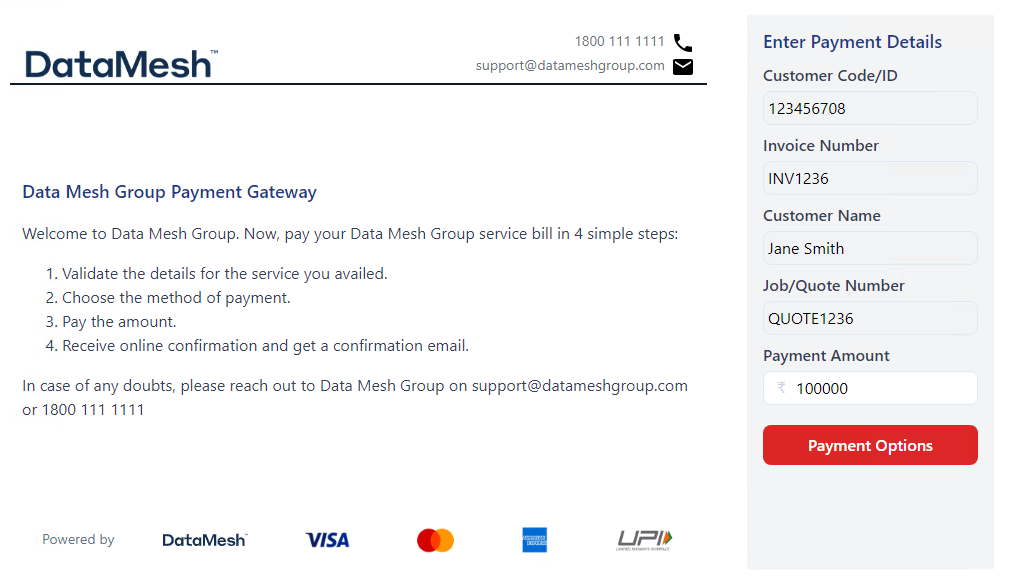
Example: an HPP form filled in from a secure link.