Secure Links
Prerequisites
- Merchant needs to prepare a pair of keys
- Merchant provides the public key to the vendor
This document is intended to be used by engineers to assist in understanding the SDK Hosted Payment Page and its inner workings. All links to the application are solely for textual demonstration and do not resolve to the final intended application at the time of writing.
The Hosted Payment Page (HPP) is a software-as-a-service (SAAS) low-code solution for merchants to implement the DMG E-Commerce SDK within their application with minimal coding requirements. It is intended for simple installations where there is little need for design customization, if integration with applications is required, then this can easily be achieved with webhooks instead.
Where further customization and configuration are necessary, then this can be achieved by using Mentor. For access and further details, please contact DMG. Included in Mentor webhooks can be created, which allows for the ability to obtain payment processing, whether a payment was successful or not.
As part of the HPP is the ability to create Secure Links that can be wrapped within QR Code images. The Secure Links are cryptographically secured by a secret key so that only the merchant can create valid links. The process to encrypt these links is described in detail in the following section titled HPP Link Generation.
Generating Secure Links
Secure Links are links that the merchant creates using a specific encryption process using key pairs that only DMG and the merchant know. The links generated can be then easily wrapped into a QR image that can then be provided.
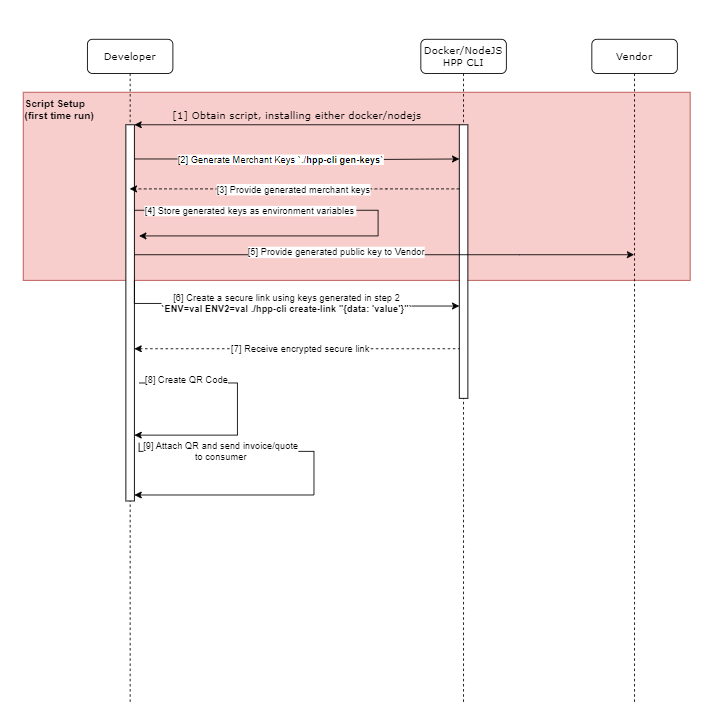
Below is a simple sequence diagram showing the interactions between key entities, noting we assume the customer will be using their mobile device to interact with the HPP.
HPP CLI Source Code
Below is the helper script coded in Node.js to convert the passed parameters to an encrypted link, refer to the usage methods below for further details on how to use this script.
Update Notice: The version of the script below is version 5, we’ll let you know if you need to update the script.
#! /usr/bin/env node

const crypto = require('crypto');

function generateKeys() {
  const keyPair = crypto.generateKeyPairSync('rsa', {
      modulusLength: 1028,
      publicKeyEncoding: {
          type: 'spki',
          format: 'pem'
      },
      privateKeyEncoding: {
          type: 'pkcs8',
          format: 'pem'
      }
  });

  return keyPair;
}

function createLink(vendorKeyPair, merchantKeyPair, data, baseUrl) {
    // generates a random symmetric key for encrypting data
    const symmetricKey = crypto.randomBytes(32); // 256 bits = 32 bytes

    // Encrypt the data with the symmetric key (using AES encryption)
    const iv = crypto.randomBytes(16); // Initialization vector for AES
    const cipher = crypto.createCipheriv('aes-256-cbc', symmetricKey, iv);
    const params = JSON.parse(data);

    const urlParams = `code=${params.code ?? ''}&invoice=${params.invoiceNo ?? ''}&customer_name=${params.customerName ?? ''}` +
    `&job_number=${params.jobNumber ?? ''}&amount=${params.amount ?? ''}`;


    let encryptedData = cipher.update(urlParams, 'utf-8', 'base64');
    encryptedData += cipher.final('base64');

    // Encrypt the symmetric key with the vendor's public key
    const encryptedSymmetricKey = crypto.publicEncrypt({
        key: vendorKeyPair.publicKey,
        padding: crypto.constants.RSA_PKCS1_OAEP_PADDING
    }, symmetricKey);

    // Merchant signs the encrypted data with their private key
    const sign = crypto.createSign('SHA1');
    sign.write(encryptedData);
    sign.end();

    const signature = sign.sign(merchantKeyPair.privateKey, 'hex');

     // Concatenate IV, encrypted symmetric key, encrypted data, and signature
    const concatenatedData = iv.toString('base64') + '.' +
        encryptedSymmetricKey.toString('base64') + '.' +
        encryptedData.toString('base64') + '.' +
        signature.toString('base64');

    // Base64url encode the concatenated data
    const encodedHppUri = baseUrl + Buffer.from(Buffer.from(concatenatedData)).toString('base64url');

    return encodedHppUri;
}

if (process.argv.length === 2) {
  console.log('./hpp-cli <command>');
  console.log('');
  console.log('Commands:');
  console.log('gen-keys - Generates the keys required to create links');
  console.log('create-link <data> - Creates the link for the hosted payment page');

  process.exit(1);
}

if (process.argv[2] && process.argv[2] === 'gen-keys') {
  const keyPairs = generateKeys();

  console.log('Hosted Page - Secure Link Key Generator')
  console.log('Below are the intended keys to be used as part of the process in creating secure links');

  console.log('')
  console.log('Public Key:');
  console.log(Buffer.from(keyPairs.publicKey).toString('base64url'));
  console.log('');
  console.log('Private Key:');
  console.log(Buffer.from(keyPairs.privateKey).toString('base64url'));
  console.log('');
  console.log('Note: Please keep the private key secret and do not share it with anyone else including the vendor.')
}

if (process.argv[2] && process.argv[2] === 'create-link') {
  if (process.argv.length !== 4) {
    console.error('./hpp-cli create-link <data>');
    console.error('');
    console.error('<data> - JSON formatted string to pass the form attributes');
    process.exit(1);
  }

  const vendorKeyPair = {
    publicKey: Buffer.from(process.env.VENDOR_PUBLIC_KEY, 'base64url').toString('ascii')
  }

  const merchantKeyPair = {
     privateKey: Buffer.from(process.env.PRIVATE_KEY, 'base64url').toString('ascii')
  }

  const data = process.argv[3];

  const baseUrl = process.env.PARAMS_BASE_URL ?? 'https://hosted-page.ecomm.dmgsecure.io/';

  const encodedHppUri = createLink(vendorKeyPair, merchantKeyPair, data, baseUrl);

  console.log(encodedHppUri);
}
The above script uses Node.js to generate keys and create encrypted links, it can either be run as a separate service, integrated directly into the application or translated into other languages using their cryptography library.
Preface
To run the above script you will need to determine the most appropriate solution.
You can run as either:

or

Docker allows the user to run the script without worrying about dependencies and allowing the script to run in an isolated environment. Requires Docker to be installed.
NodeJS is the quickest and easiest method to take, especially where QR code generation is being handled separately. Requires NodeJS to be installed.
1. Using Docker
If you want to run this script without installing Node and/or have Docker installed, then this might be a better method to encrypt links.
Tested using Node 20, you should be able to run the script above directly in Node.js.
-
Install Docker by going to the following link docker.com if not installed.
-
Developers to open the terminal and navigate to the location you have placed the script.
-
Developers generate the merchant keys to set the script
-
Send the Public Key to your vendor to allow for the decryption of the links
-
Copy and paste the following command, changing the parameters as required.
docker run -it --rm --name hpp-link-gen -v "$PWD":/usr/src/app -w /usr/src/app -e PARAMS_BASE_URL='https://hosted-page.ecomm.dmgsecure.io/' -e VENDOR_PUBLIC_KEY=YOUR_VENDOR_PUBLIC_KEY -e PRIVATE_KEY=YOUR_PRIVATE_KEY  node:20-slim node hpp-cli create-link '{
  "code": "123456789",
  "invoiceNo": "INV1234",
  "customerName": "John Doe",
  "amount": "2600"
}'
Please keep PARAMS_PRIVATE_KEY private.
- Running the above script will create the following link e.g.
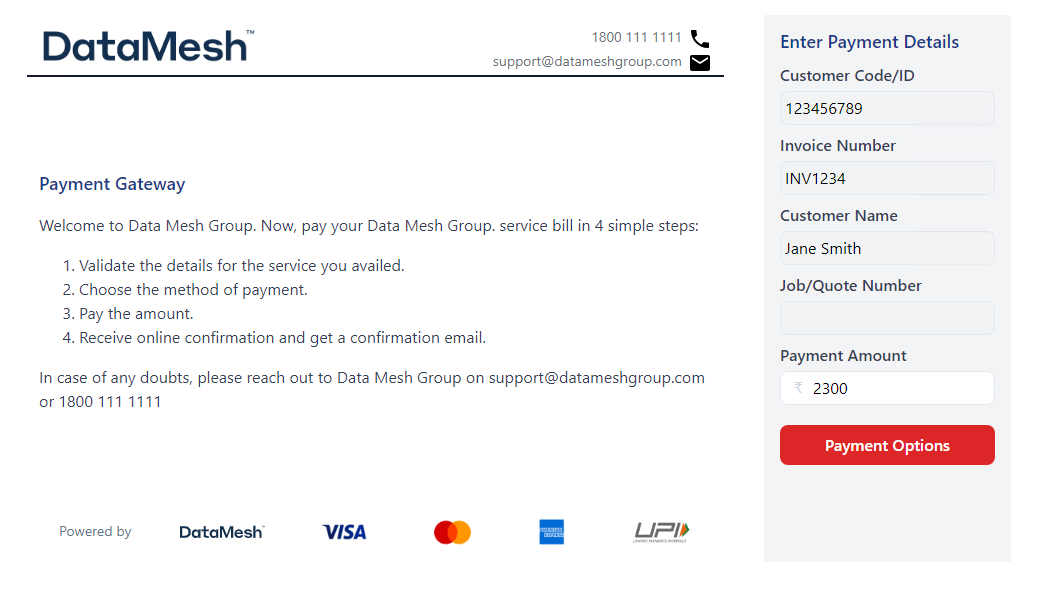
- To test the link, navigate to the generated link and it should show the following filled-in form (optional).
As a way of testing this, the user can navigate directly to the generated link, if the link is valid and hasn’t expired, they will be presented with the following interface with the form fields populated with the data used to generate the link above.
Note that the first 4 fields are set as read-only and the last 3 are defaulted based on the provided values set in link generation and can be changed by the user.
- Generate a QR code
The benefit of using Docker is that you can pipe the output into another Docker image to generate QR Code images, see QR Code Generation section below.
Let's say you want to create an HPP Secure Link for Tom Jones for 2700 INR, you can run the following code.
docker run -it --rm --name hpp-link-gen -v "$PWD":/usr/src/app -w /usr/src/app -e PARAMS_BASE_URL='https://hosted-page.ecomm.dmgsecure.io/' -e VENDOR_PUBLIC_KEY=YOUR_VENDOR_PUBLIC_KEY -e PRIVATE_KEY=YOUR_PRIVATE_KEY  node:20-slim node hpp-cli create-link '{
  "code": "123456789",
  "invoiceNo": "INV1234",
  "customerName": "John Doe",
  "amount": "2600"
}' | docker run --rm -i --net=none leplusorg/qrcode qrencode -l L -o - > qr.png
- This will generate the following image:

When scanned with a phone or tablet, it will go to:
-
Place the above QR code image into the systems invoice or quote.
-
Scan the QR code from the invoice.
If everything is correct above, it should show the HPP as shown below.
2. Using Node.JS
Tested using Node 20 in a Linux environment, you should be able to run the script below.
-
Install https://nodejs.org if not installed.
-
Download and place the script onto the server e.g.
/usr/bin/hpp-cli. -
cd <path-to-script>. -
chmod +x hpp-cli. -
Firstly create the merchant keys using:
./hpp-cli gen-keys
-
Only share the public key to your vendor, the private key will be stored locally and used below.
-
With the command below, change as required for the payer and paste it into the command line.
PARAMS_BASE_URL='https://hosted-page.ecomm.dmgsecure.io/' \
VENDOR_PUBLIC_KEY=YOUR_VENDOR_PUBLIC_KEY \
PRIVATE_KEY=YOUR_PRIVATE_KEY \
./hpp-cli create-link '{"code": "123456789", "invoiceNo": "INV1234", "customerName": "Jane Smith", "amount": "100000"}'
-
Run the command above, which should generate a URL that can be converted into a QR code.
-
To expand on step 2, to turn this into a QR code image, you can run it through another docker image called leplusorg/qrcode:
PARAMS_BASE_URL='https://hosted-page.ecomm.dmgsecure.io/' \
VENDOR_PUBLIC_KEY=YOUR_VENDOR_PUBLIC_KEY \
PRIVATE_KEY=YOUR_PRIVATE_KEY \
./hpp-cli create-link '{"code": "123456789", "invoiceNo": "INV1234", "customerName": "Jane Smith", "amount": "100000"}' | docker run --rm -i --net=none leplusorg/qrcode qrencode -l L -o - > qr.png
-
With the link above, you can then convert it into a QR code which can then be inserted into e.g. invoices, and quotes for the customers to scan see QR Code Generation section below.
-
Place the QR code image into the systems invoice or quote.
-
Scan the QR code from the invoice.
If everything is correct above, it should show the HPP.
Secure Links in Depth
If you intend to implement your in-house method either with a different node.js code or in a different programming language, then hopefully the following steps assist in how we go from plaintext parameterized URL link to a QR code.
Links are generated using SHA1 signed AES 256bit CBC hybrid asymmetric/symmetric zero-knowledge cryptography to create simple secure links that can be easily wrapped in a QR code.
If coding your solution following the algorithm below, we recommend using Cryptography libraries that are part of the language codebase and not attempting to create your own.
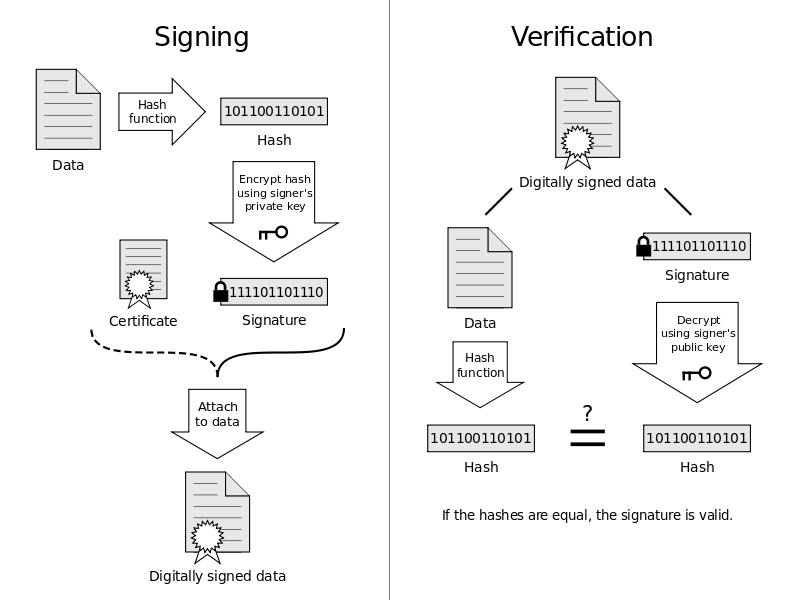
In summary, the encryption process will be as follows which ensures not only that the data is encrypted, but is only created by the merchant.
Steps for encryption
-
Create the merchant public and private key pairs, if not already done so.
-
Create a random symmetric key for encrypting the data.
-
Create the Initialization Vector (IV) randomly generated using 128bit keys, this needs to be randomized for each generated link and will be part of the final encrypted text (note, 16 bytes must match HPP Backend to decrypt successfully).
-
Encrypt the data using the symmetric key and IV generated previously using AES 256bit (CBC).
const cipher = crypto.createCipheriv('aes-256-cbc', symmetricKey, iv);
let encryptedData = cipher.update(JSON.stringify(data), 'utf-8', 'base64');
- Encrypt the symmetric key with your vendor public key.
  const encryptedSymmetricKey = crypto.publicEncrypt({
        key: <VENDOR_PUBLIC_KEY>,
        padding: crypto.constants.RSA_PKCS1_OAEP_PADDING
    }, <SYMMETRIC_KEY>);
-
Sign the encrypted data with the merchant's private key.
-
Concatenate the generated values together.
 const concatenatedData = iv.toString('base64') + '.' +
        encryptedSymmetricKey.toString('base64') + '.' +
        encryptedData.toString('base64') + '.' +
        signature.toString('base64');
- With the created cipher object, we can then feed in the URL Params (Plaintext) intended to be encrypted.
const cipher = crypto.createCipheriv('aes-256-cbc', key, iv);
-
After encryption is finished, in the Node Crypto library, you need to pass crypto.final('hex'). Depending on the programming language and library used, this may not be required.
-
In the final step, you’ll need to add the IV symmetric key, encrypted string and signature together, this will form the encrypted payload to append after the forward slash after the HPP domain name e.g. https://hosted-page.ecomm.dmgsecure.io/ encrypted-payload-here.
-
Then based on the link created above, you can convert it into a QR code which can then be inserted into e.g. invoices, and quotes for the customers to scan see QR Code Generation section below.
Below is a high-level overview of the process to create the required cipher that the backend needs to successfully decode the encrypted links.
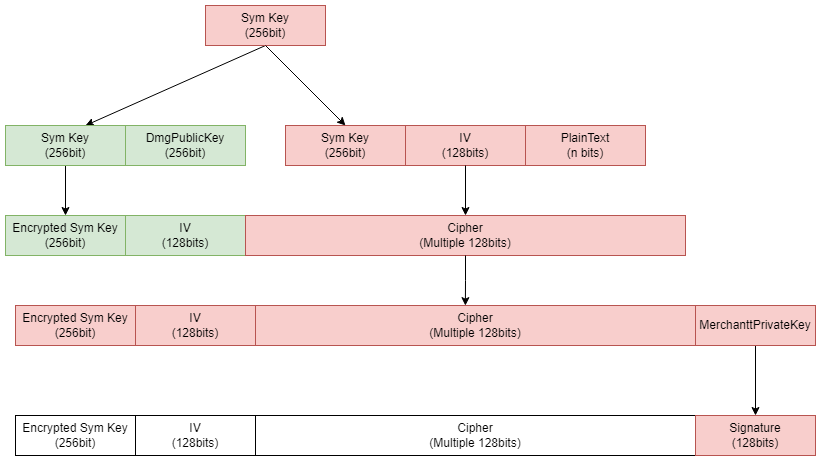
Links will be generated locally alongside the system that generates the QR with the following script.
If everything is correct above, the Secure Links should successfully decrypt and decode into the correct form fields as shown below.
QR Code Generation
Additionally, to the created link above and if you are wanting/already using Docker, we can easily convert this link to a QR Code by simply passing it through the following command.
Alternatively, there is an abundance of QR code generation libraries available to convert data to QR codes, depending on the solution requirements needed.
| docker run --rm -i --net=none leplusorg/qrcode qrencode -l L -o - > qr.png
For example, we can convert the previous Docker link generation call as demonstrated below:
HPP Link Generator Docker → QR link generator
docker run -it --rm --name hpp-link-gen -v "$PWD":/usr/src/app -w /usr/src/app -e PARAMS_BASE_URL='https://hosted-page.ecomm.dmgsecure.io/' -e VENDOR_PUBLIC_KEY=YOUR_VENDOR_PUBLIC_KEY -e PRIVATE_KEY=YOUR_PRIVATE_KEY  node:20-slim node hpp-cli create-link '{
  "code": "123456789",
  "invoiceNo": "INV1234",
  "customerName": "John Doe",
  "amount": "2600"
}' | docker run --rm -i --net=none leplusorg/qrcode qrencode -l L -o - > qr.png
NodeJS → QR link generator
PARAMS_BASE_URL='https://hosted-page.ecomm.dmgsecure.io/' \
VENDOR_PUBLIC_KEY=YOUR_VENDOR_PUBLIC_KEY \
PRIVATE_KEY=YOUR_PRIVATE_KEY \
./hpp-cli create-link '{"code": "123456789", "invoiceNo": "INV1234", "customerName": "Jane Smith", "amount": "100000"}' | docker run --rm -i --net=none leplusorg/qrcode qrencode -l L -o - > qr.png
Generated Secure Link → QR link generator
echo "https://hosted-page.ecomm.dmgsecure.io/48b21728e42c02a5e0aa5d704e3468eebffb8262e339f7def0e575b778d309fde2de953c36a1800154eb7b007978701809d86cc86c1de1d956fddc1460afc0868d541310c2865afe9968503f0dd7a398418fd01def4f95a5c43b192b04bf6b2e5cfe0da8b592e7454a1bf71645444578186c5606f7a33bf9045d770b4e6dd35f8c76355ee883e003d61ebec4c30cc3edbe388da6ee639b25dbe5ca4d06b315f627220af28148defd22313ea5ba8cddd7"
| docker run --rm -i --net=none leplusorg/qrcode qrencode -l L -o - > qr.png
The hosted payment page, commonly referred to simply as HPP, is a payment portal that can be accessed by a simple link.

When the user goes to the provided link, they are given the obtain to fill in their payment details for them to pay for given invoices. Users can either go directly to the HPP or to simplify the payment experience, they can be provided a link either in the form of a straight URL or encapsulated in the form of a QR Code image such as a QR code within an invoice.
When they visit the HPP using a generated link, they are presented with a form pre-filled with the details provided by the merchant on link generation. Each link generated is unique and cryptographically secured, meaning it’s extremely difficult to guess generated links as long as the link is not shared with anyone else, their details will stay anonymous.
The HPP acts as a wrapper to the larger powerhouse, the DMG E-commerce SDK (DMG SDK), when the customer fills in the form (or using Secure Links, simply clicks “Payment Options”) they are presented with the DMG SDK which sits safely behind another layer of security using iFrame, meaning even the HPP has no access to the underlying DMG SDK form data or code.
In the HPP, the DMG SDK shows as an in-page popup model, pulling across the amount and user details from the first page. It then presents to the user a list of available payment methods and the corresponding form for them to fill in.
This includes:
-
Card
-
UPI
-
Wallets
-
Net Banking
After filling in and making payment on their invoice, on successful payment, they are given a successful in-page popup showing the “Success” message, details of their payment and the ability to email themselves a payment receipt.
HPP Invoice/Quote Form
Invoice/Quote Form Parameters
Below are the parameters that are to what is shown in the HPP.
Properties |
|
|---|---|
string code | Customer email address used for the payment. min 7 characters, maximum 9 characters |
string invoiceNo | Customers invoice/quote number, max. 256 characters |
string customerName | Customer's full name, max. 256 characters |
string jobNumber | Job number, max. 256 characters |
numeric amount | Invoiced amount |